Credits are how you render with Spacely AI. Every tool draws from your monthly balance, and the new plans — launching July 15, 2026 — are built so that balance stretches further the more you create.
Each feature uses a set number of credits based on the complexity of the render. The new structure rewards committing to a plan that matches your volume.
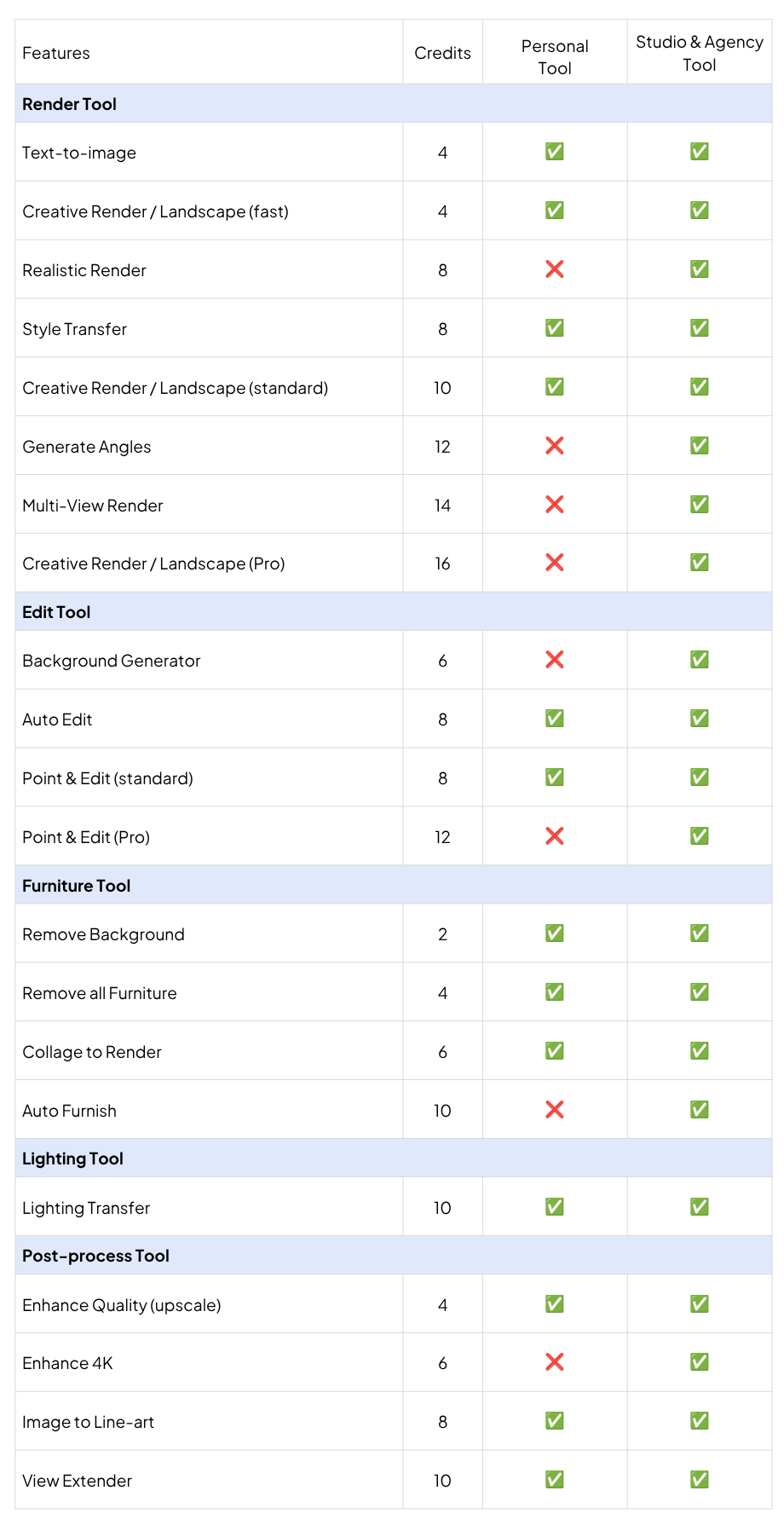
Overview Credit Consumption
Features
Credits
Remove background
2
Creative Render (fast), Text-to-image, Remove all Furniture, Enhance Quality (upscale)
4
Background Generator, Collage to Blend, Enhance 4K
6
Realistic Render, Style Transfer, Auto Edit, Point & Edit (standard), Image to Line-art
8
Creative Render (standard), Auto Furnish, Lighting Transfer, View Extender
10
Generate Angles, Point & Edit (pro)
12
Multi-View Render
14
Creative Render Pro
16
Most users spend 6–20 credits per session, depending on their workflow. You can top up credits at any time.
Tool Access for the New Subscription Plan:
*The Education plan includes the same access as the Studio plan.
How to install a SketchUp extension two ways — from the Extension Warehouse or from SketchUcation. Step-by-step, plus troubleshooting.
You can install a Sketch…
The pace of design has changed. Team Canvas brings your whole team onto one live render in Spacely AI: real-time edits, comments, and shared credits.
Real-time…
Spacely AI for AutoCAD turns your design into a client-ready render without leaving the tool. See how it works, how to get early access, and what it does today.…